 Audio Tag Editor
 BPM Finder
 Live BPM Finder
 Key Finder
 Mix Maker
 Track Analyzer
 Transition Finder
 VST Manager
The iPad DJ workflow is different from the phone workflow. On iPhone, you are often checking a quick BPM on the go, holding your phone up to a speaker at a crate dig or pulling up a reading mid-set. On iPad, you are more likely sitting at a table or in a home studio, going through new music with intention before a gig. That changes which apps matter and how you use them.
All of the apps in this list work on iPhone too, but on iPad the larger screen and the likelihood that you are in a fixed spot for a sustained session open up use cases: batch processing a folder, reviewing session logs, or working through new music at a desk rather than in a rush. Here is what the market looks like in 2026.
At a glance
The best BPM finder apps for iPad
BPM Finder (best for batch library prep)
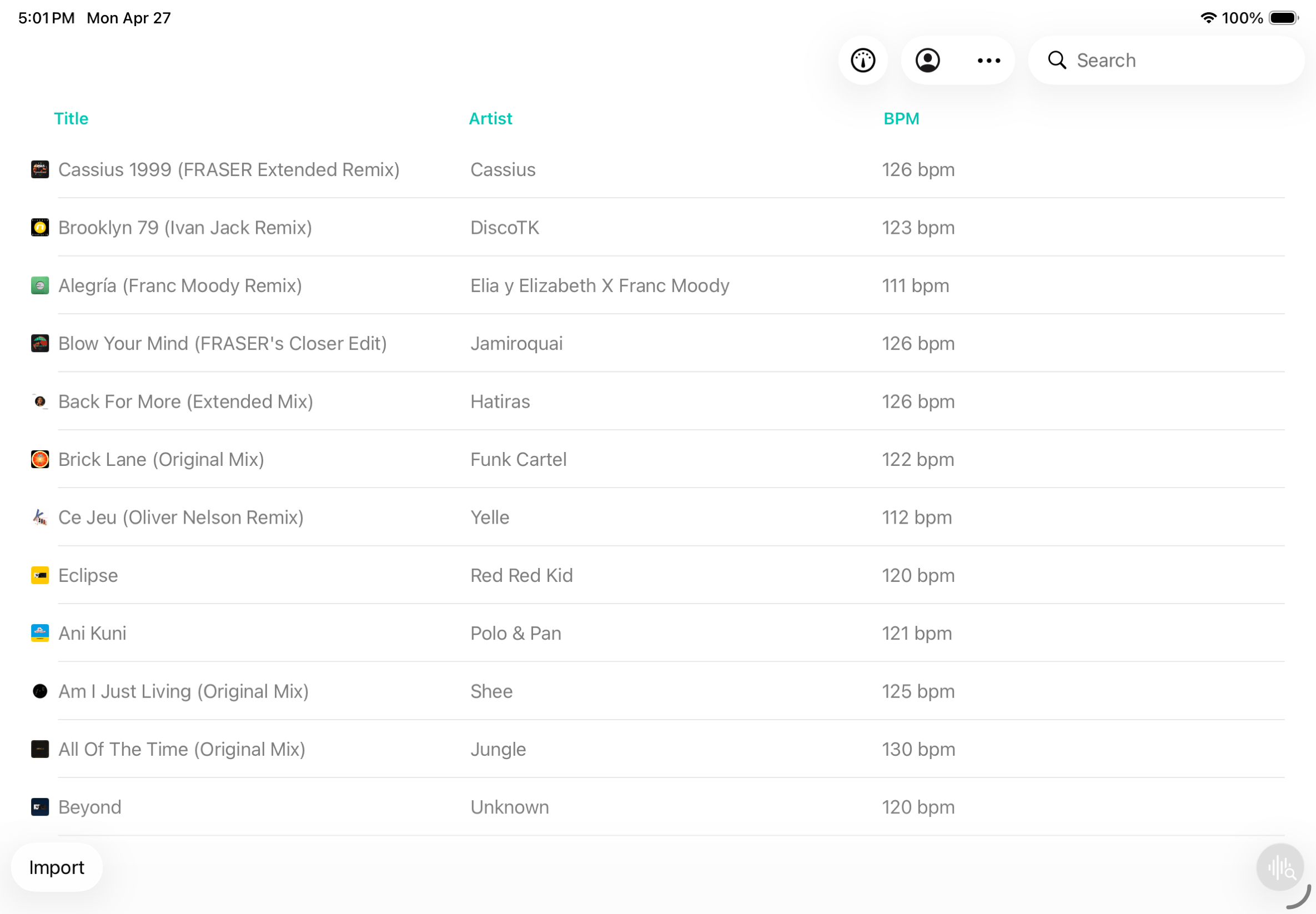
On a phone, BPM Finder is something you open when you need a fast result on a track you just downloaded. On an iPad, it becomes something closer to a proper library tool. You can sit with it for an hour, work through a folder of new tracks pulled from iCloud Drive or Dropbox, and come out the other side with every file tagged with accurate BPM data, ready for whatever software you are loading them into next.
Detection runs on-device in under a second per track, with no internet connection and no files sent anywhere. Batch mode processes an entire folder without intervention. The result is written directly to each file's BPM metadata tag, which means your DJ software, music player, or any other app that reads audio tags sees the value without any additional steps.
Because it is a universal purchase, the same license works on iPhone and Mac as well. If you switch between iPad prep sessions and Mac prep sessions depending on where you are sitting, that continuity is useful.
DJs who prep their libraries on iPad and want fast, accurate BPM written to file metadata, offline and in batch.
Auto BPM: Music Tempo Finder (best free option)
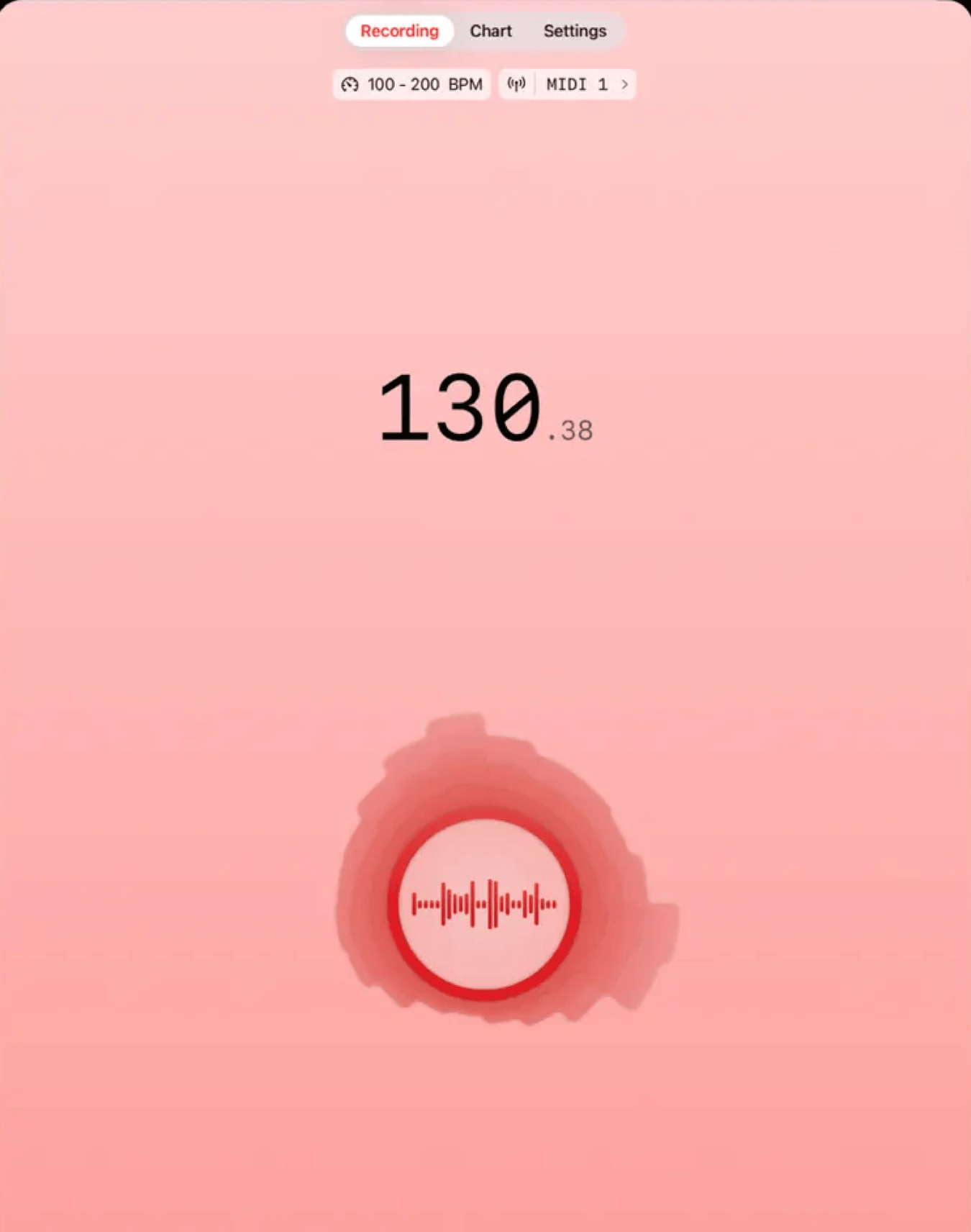
Auto BPM is one of the most downloaded BPM apps on iOS, and the reason is simple: it is entirely free with no ads and no in-app purchases. It listens through the iPad microphone, calculates tempo automatically, and displays it with accuracy that holds up well against paid tools in real-time scenarios.
What it does not do is analyze files. If you have a folder of tracks downloaded to your iPad and want to process them in a batch, Auto BPM will not help. It only works with live audio picked up by the microphone. On an iPad, this makes it most useful for checking the tempo of something playing through your monitors while you are at a desk, or identifying the BPM of a reference track someone sends you over audio.
The MIDI output is the feature that pushes it above basic alternatives. If you run a home studio setup where you want to sync effects tempo or metronome apps to what is playing, Auto BPM can transmit the detected tempo to compatible MIDI apps on the same iPad or to connected hardware.
Producers and DJs who need a free, accurate real-time BPM reading from live audio playing in their studio or home setup.
Tempi (best for session recording and practice)
Pros
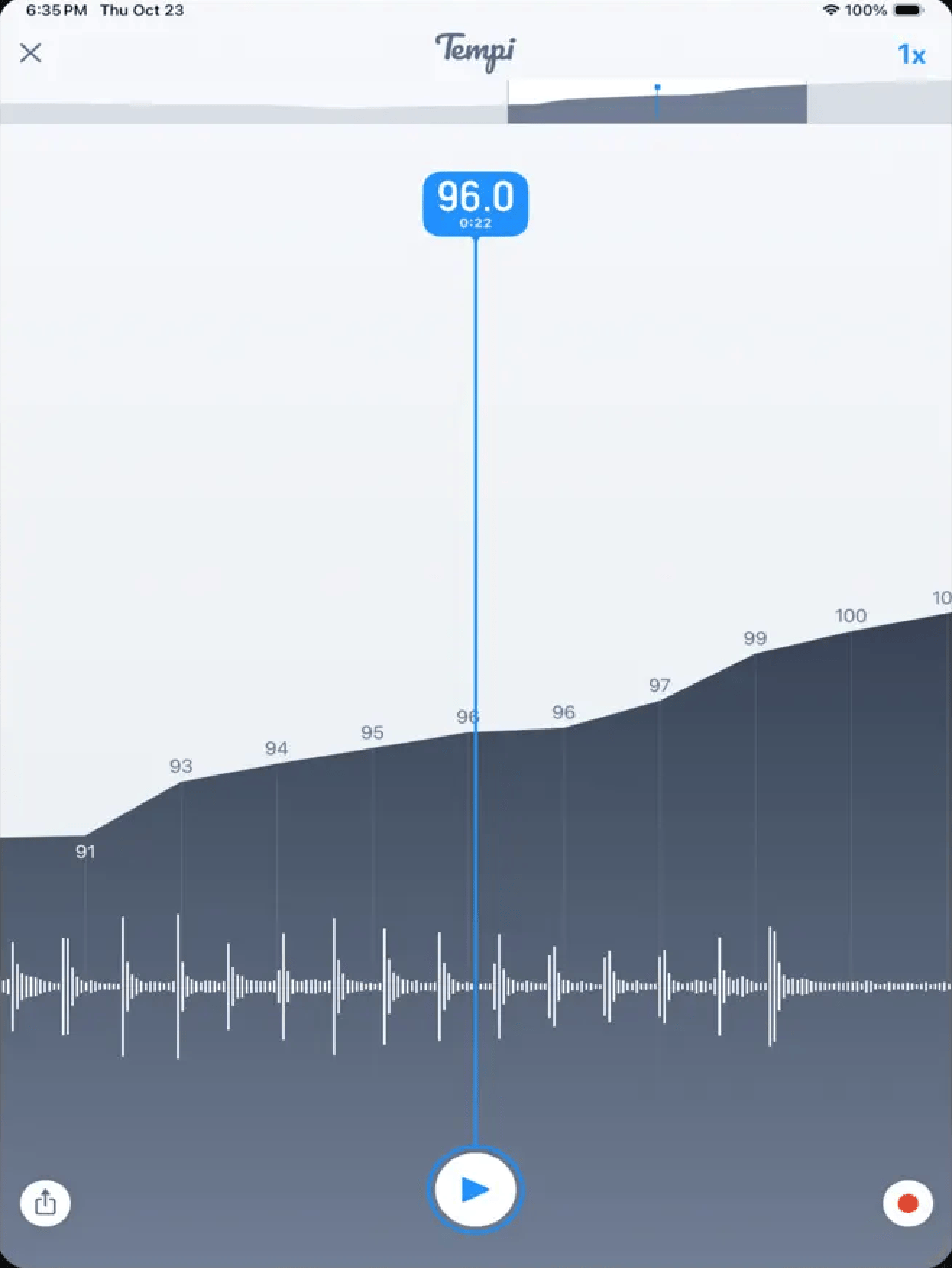
- Records and saves full performance sessions with BPM tracked over time
- Visual graphs of tempo variation across the session
- One-time purchase with no subscription
Cons
- Designed for live performance tracking, not file analysis
- Overkill if you only need a quick BPM reading
Tempi is for a different user than the rest of this list. It is built around recording a performance session, tracking BPM variation over time, and saving that data for analysis afterward. Think of it as a reverse metronome: instead of setting a tempo for musicians to follow, it captures the tempo being played and logs every fluctuation.
For a DJ who wants to analyze their own set timing, or a producer who wants to review the tempo consistency of a live jam session, Tempi fills a gap that the other apps here do not. The iPad's larger screen makes the session timeline and BPM variation graphs significantly easier to read and work with compared to a phone. It is the kind of tool that makes more sense propped up on a desk during a session than held in one hand mid-performance.
It does not analyze audio files and it will not write anything to metadata. But that is not what it is for. If you are using an iPad as a practice or performance logging tool, Tempi is the clearest option in this space.
Musicians and DJs who want to record and review BPM variation across a practice session or live performance.
What about free options?
For a quick BPM check without installing anything, Rebels offers a free browser-based BPM tool that runs analysis locally on your device. Nothing is uploaded or stored. It works in Safari on iPad and handles one track at a time. For batch processing an entire library or writing results to file tags, a dedicated app is the right tool.
What I actually use
For prep sessions on iPad, I use BPM Finder. When I am sitting at a table with a folder of new tracks pulled from Dropbox, processing everything in a batch and having BPM written to metadata takes under a few minutes regardless of how large the folder is. It is the same tool I use on Mac, just on a different device.
For anything involving listening sessions or monitoring what is playing, I keep Auto BPM installed. It costs nothing, stays accurate, and handles the moments where I want a quick reading without opening a full library tool.