 Audio Tag Editor
 BPM Finder
 Live BPM Finder
 Key Finder
 Mix Maker
 Track Analyzer
 Transition Finder
 VST Manager
Most people do not realize you can edit audio file metadata directly on iPhone. You can, and if you have ever downloaded a track that had a wrong artist tag, missing album art, or an incorrect genre, you know exactly why that capability matters. The alternative is waiting until you are back at a computer, which is not always practical when you are building a playlist on the road or discovering music away from your desk.
The apps in this category are niche, which means the market is smaller than on Mac and the tradeoffs are more specific. Here is an honest look at what is available in 2026, who each app is for, and where each one falls short.
At a glance
The best audio tag editor apps for iPhone
Audio Tag Editor (best overall)
Pros
- Auto-fill metadata automatically
- 100% offline, no files ever leave your device
- Clean, straightforward interface with no learning curve
- Imports from Files app including iCloud Drive, Dropbox, and Google Drive
- One purchase covers iPhone, iPad, and Mac
Cons
- Cannot access Apple Music library files
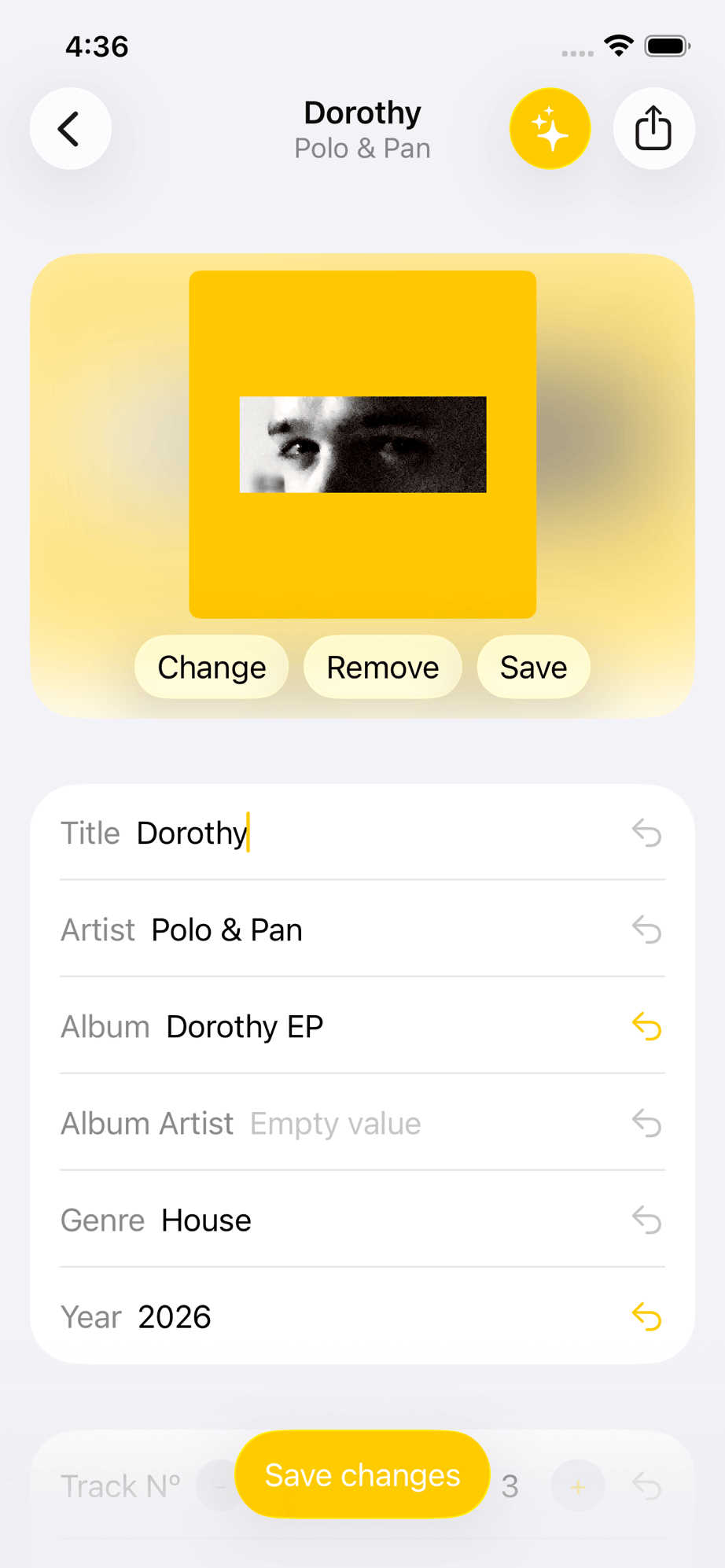
Audio Tag Editor handles the most common tag editing jobs cleanly and privately: edit the title, artist, album, genre, year, and cover art for audio files accessible through your Files app. You can also auto-fill your metadata in just one tap in the app, which is great. It supports files stored in iCloud Drive, Dropbox, Google Drive, OneDrive, and any other provider connected to your Files app. Apple Music library files are not accessible, which is a system-level iOS restriction rather than a limitation of this specific app.
The key differentiator here is the 100% offline approach. Everything runs on-device. Your audio files are not uploaded to any server for processing, which matters when the tracks in question are unreleased edits, personal rips, or anything you would not want transmitted somewhere. For a DJ or producer who manages music in cloud storage rather than Apple Music, this covers the job directly.
Batch editing works for multiple files at once. The interface is intentionally simple, which means there is no setup and no learning curve. You open a file, make changes, save them, and the updated metadata is in the file.
DJs and producers who want simple, private, offline tag editing on iPhone with a metadata auto-fill feature.
Evertag (best for automatic metadata and broad format support)
Pros
- Auto Tag Finder detects and fills missing metadata automatically
- Supports 30+ audio formats and 120+ editable tag fields
- Cloud sync across iCloud Drive, Dropbox, Google Drive, and OneDrive
Cons
- More expensive than alternatives at $29.99 or $39.99 lifetime
- Auto-tagging requires an internet connection
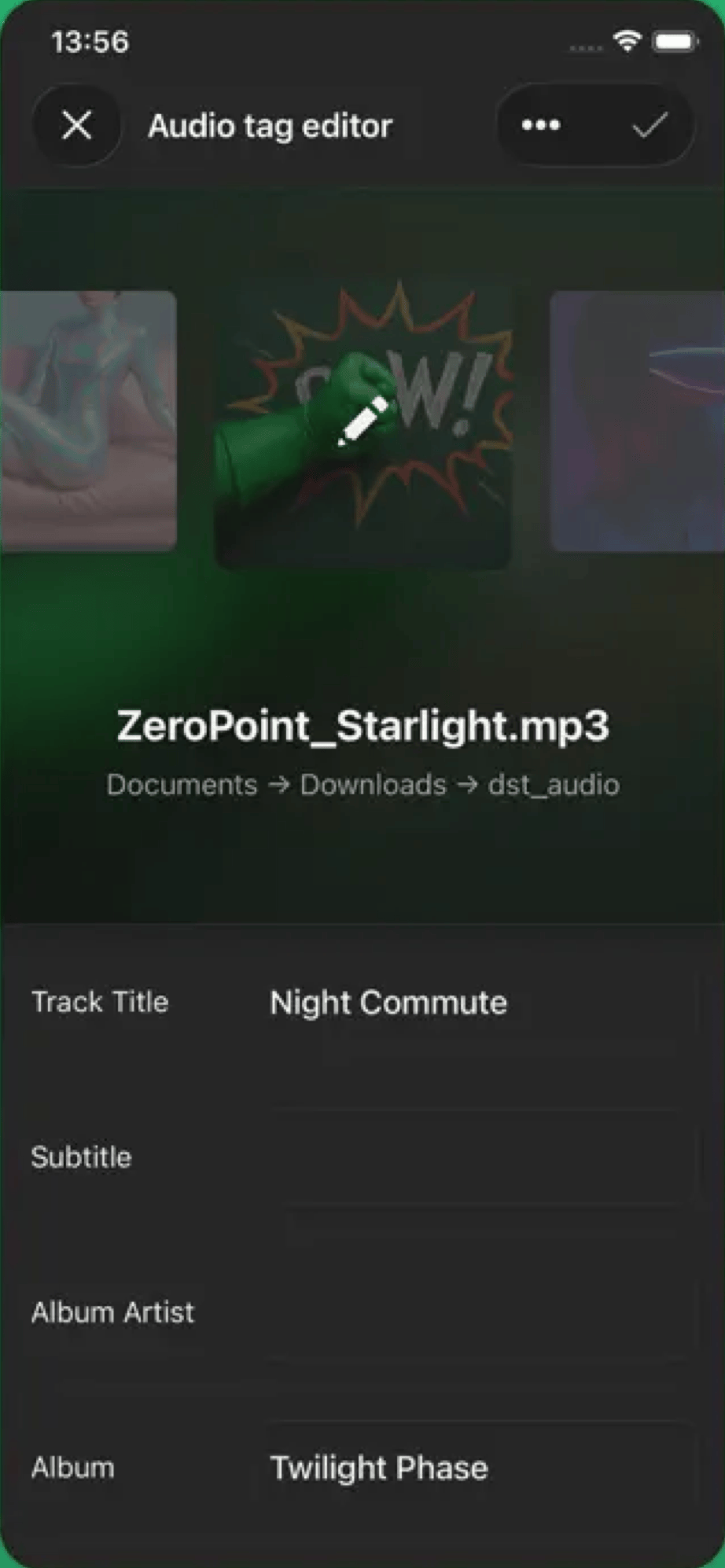
Evertag is the most feature-complete audio tag editor on iOS. The Auto Tag Finder is the standout capability: it detects missing or incorrect metadata and fills it in automatically, which is useful if you have a large number of poorly tagged files that would take significant time to correct manually.
The price is the main objection. $24.99 for a lifetime license is not unreasonable for a professional tool, but it is meaningfully more than the alternatives in this list. The yearly subscription at $12.99 adds up faster. If you only need to fix a few fields on occasional files, it is more than you need.
Users with large collections of poorly tagged files who want automatic metadata detection and the broadest format support available on iOS.
MP3 Tag: Music Tag Editor (best free starting point)
Pros
- Free to download with a usable feature set
- AI-powered cover art finder locates correct artwork in seconds
- Supports cloud storage and private music server connections via WebDAV
Cons
- Some features require in-app purchase to unlock
- Permissions requests can feel intrusive on first launch
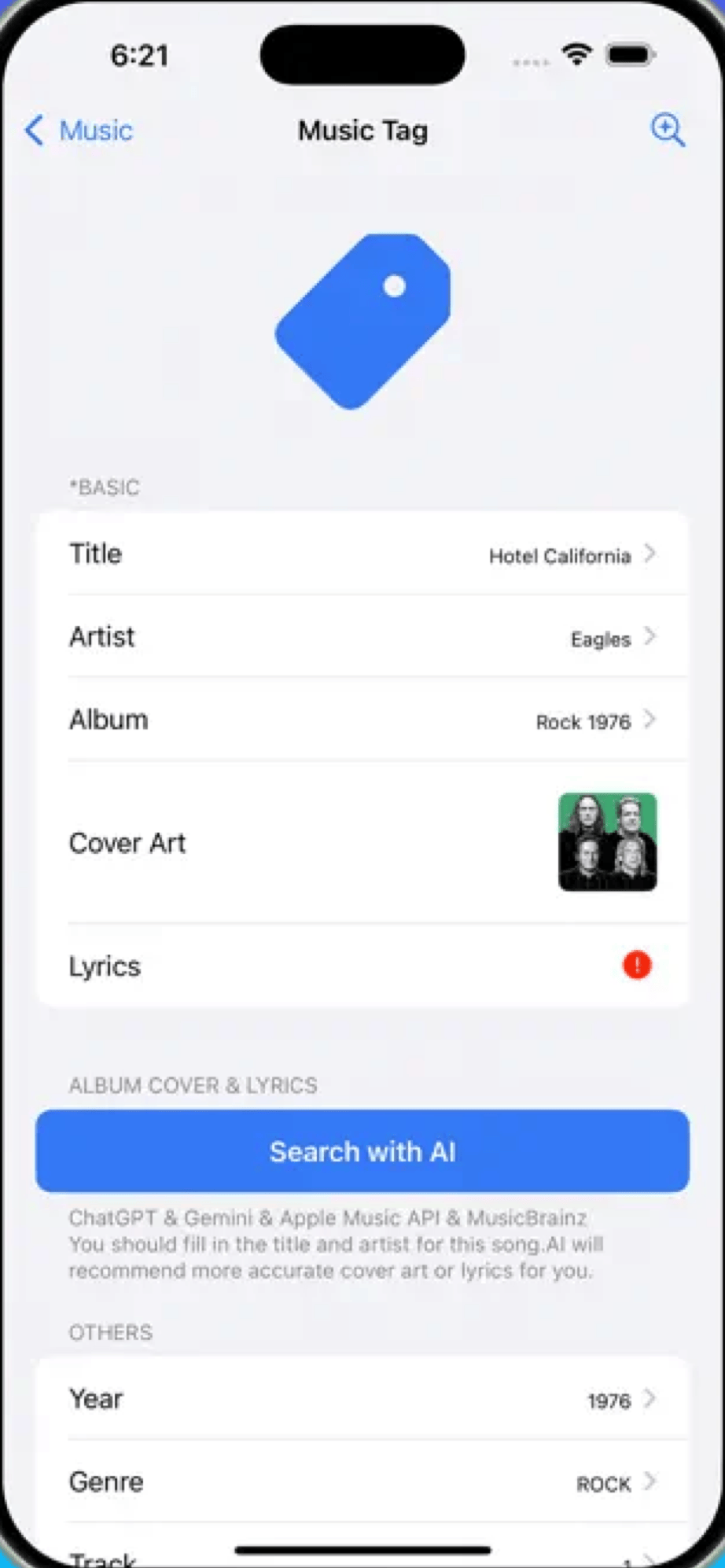
MP3 Tag: Music Tag Editor is the most accessible starting point if you want to try tag editing on iPhone without paying upfront. The free tier covers basic tag editing and file import from cloud storage. The standout feature is an AI-powered cover art finder that locates the correct album artwork in around three seconds, which is genuinely faster than searching manually.
It also supports connection to private music servers via WebDAV and Navidrome, which is a specific but useful capability for users running self-hosted music libraries. If your music lives on a Navidrome instance, this is one of the only iOS tag editors that can reach it directly.
The free version is limited enough that frequent users will likely hit its boundaries, and in-app purchases unlock the full feature set. Check the current pricing in the App Store before downloading.
Users who want to try audio tag editing on iPhone without paying first, or who need to connect to a self-hosted music server for tag management.
Tunetag (best for power users who prefer manual control)
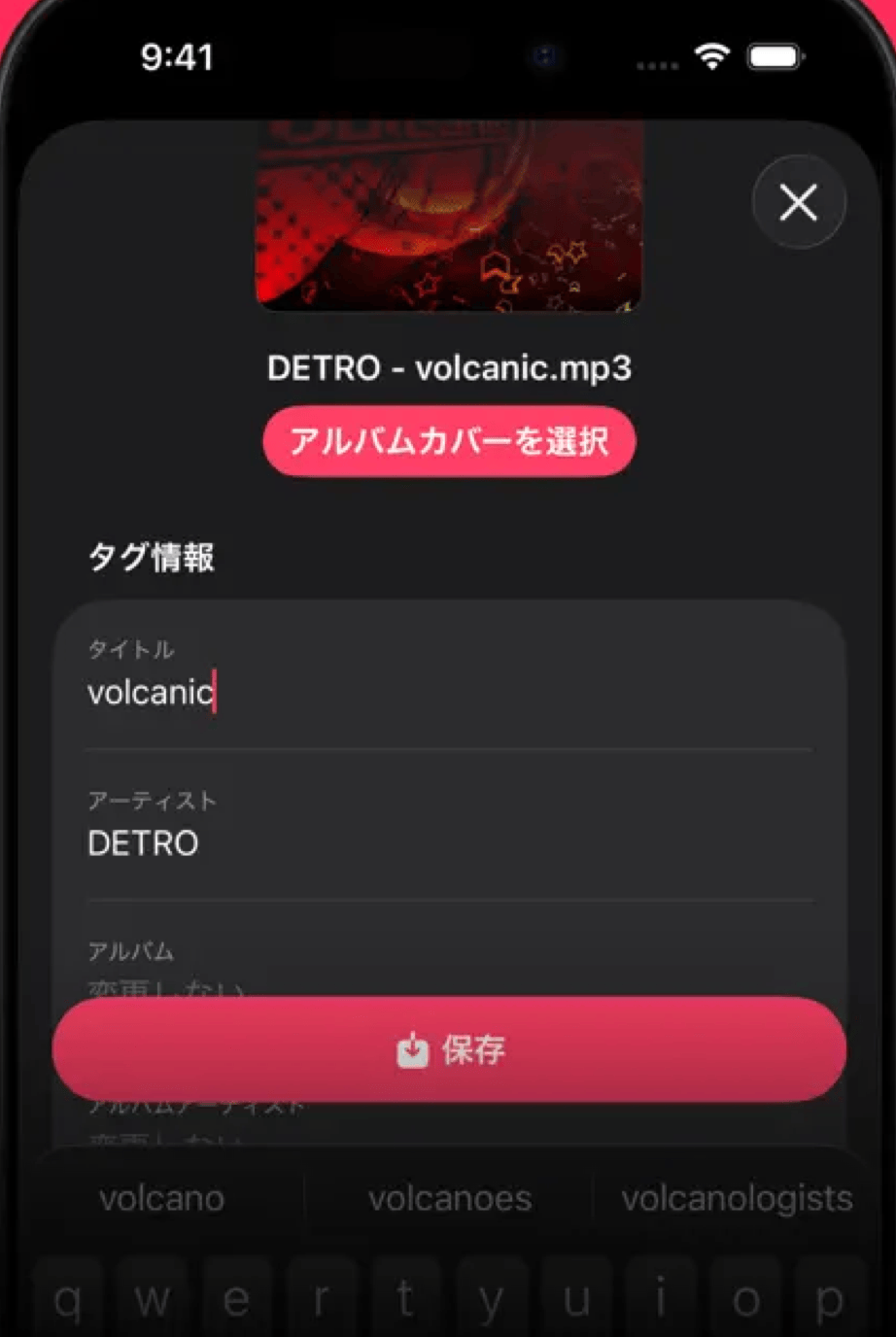
Tunetag is the most technically capable option for users who want precise manual control over batch tag operations. Its defining feature is a token-based batch editing system: you define patterns using tokens like artist, album, and track number, and the app applies them across multiple files at once. This is a power user feature that significantly reduces the work of editing a consistently structured batch of files.
The native Files app integration is handled cleanly, with no share sheet workarounds needed. The app opens and saves directly from the Files interface. The open-source project is actively maintained, which is reassuring compared to some alternatives in this category that have not been updated in years.
Format support is focused primarily on MP3. If your library includes a significant mix of FLAC, AAC, AIFF, and WAV files, you will hit its boundaries.
Power users who want token-based batch tag editing on iPhone and primarily work with MP3 files.
What about free options?
For reading existing audio tags on a file without editing them, Rebels offers a free online audio tag viewer that works in the browser on iPhone. It reads and displays the metadata embedded in an audio file locally, so no files are uploaded. For actual editing, one of the apps above is the right tool. MP3 Tag also offers a usable free tier for those who want to start without spending anything.
What I actually use
For tag edits on tracks, Audio Tag Editor is the app I reach for. It opens quickly, the import from Files is direct, and the edits are written back to the file without any unnecessary steps. I can fix a wrong artist name or drop in correct album art in under a minute.
If I had a large batch of files with missing tags that needed batch automatic filling, I would pay for Evertag's lifetime license for that task. But for the occasional fix on a specific file while away from my Mac, Audio Tag Editor handles it without the overhead.