 Audio Tag Editor
 BPM Finder
 Live BPM Finder
 Key Finder
 Mix Maker
 Track Analyzer
 Transition Finder
 VST Manager
iPad makes a capable tag editing platform, more capable than most people expect, and the use case is specific. If you are doing a focused library cleanup session, a folder of 50 tracks with incorrect or missing metadata, and you want to work through them systematically without opening a computer, an iPad with a good tag editor handles that job.
This is different from quick on-the-go fixes you might do on iPhone. The iPad context is a table, probably at home or in a studio, with time set aside to do the work properly rather than making do. The apps that serve this well are the same ones that work on iPhone, but the larger screen and the expectation of a sustained session change which features matter most.
At a glance
The best audio tag editor apps for iPad
Audio Tag Editor (best overall for privacy and simplicity)
Pros
- Auto-fill metadata automatically
- 100% offline processing, no files uploaded anywhere
- Batch editing for multiple files at once
- Imports from any Files app source including iCloud Drive and Dropbox
- One purchase covers iPad, iPhone, and Mac
Cons
- Cannot access Apple Music library files
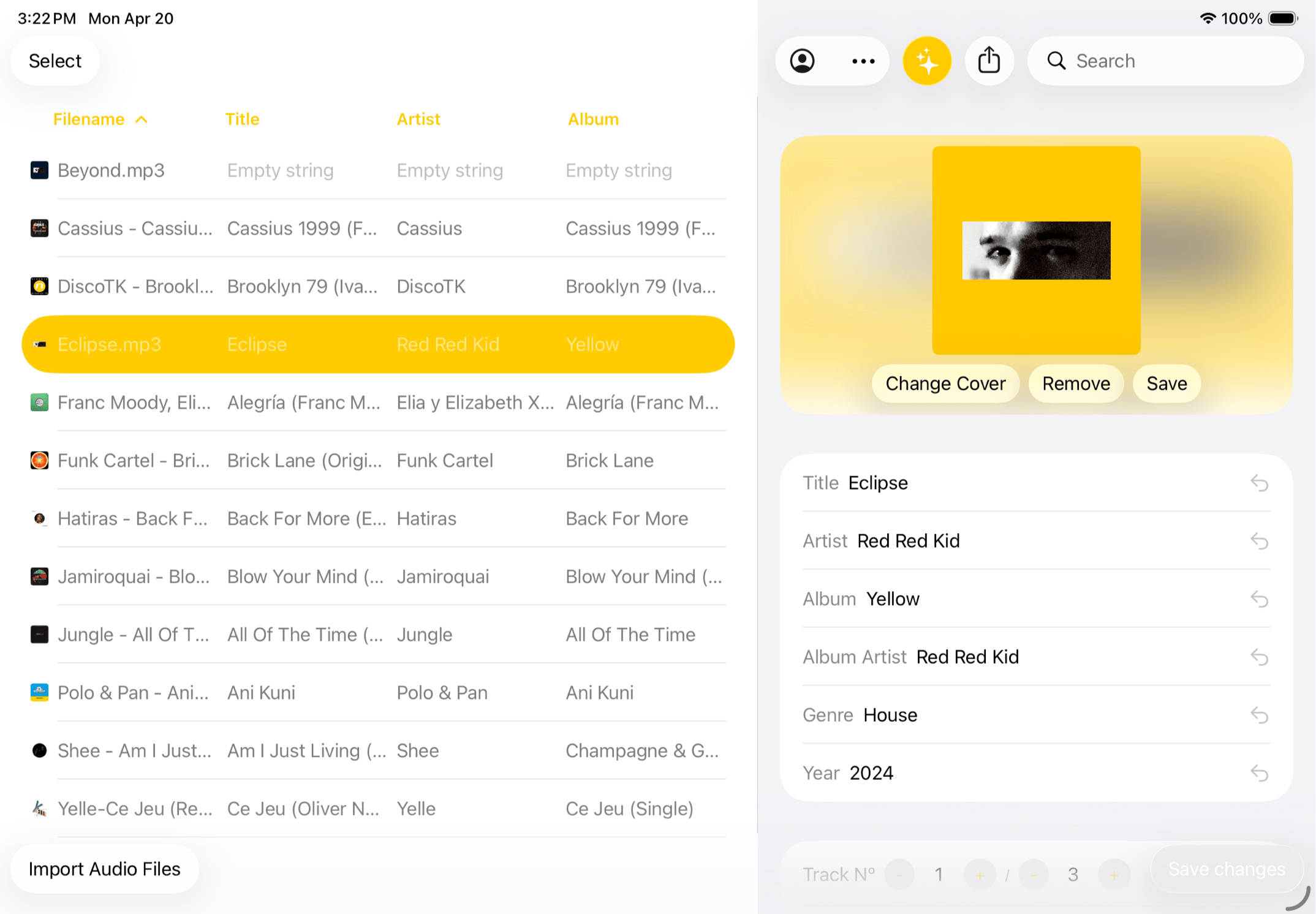
Audio Tag Editor on iPad is where a straightforward library cleanup session runs cleanly. Pull in a folder from iCloud Drive or Dropbox through the Files app, select the files you need to update, and edit the shared fields across all of them at once. Title, artist, album, genre, year, artwork: all of it stays on-device and is written directly back to each file. Nothing is uploaded.
For a DJ going through a batch of new downloads with inconsistent tags, this is the most direct workflow in this category. The iPad's larger screen makes it easier to see several files at once and verify what you are editing, compared to doing the same work on a phone. The interface is intentionally simple, which means there is no setup time and no features to configure before you can start working.
Because it is a universal purchase, the same license continues working on iPhone for quick edits on the go, and on Mac for larger sessions where the full desktop environment is more practical.
DJs who want a private, offline tag editing session on iPad for files pulled from cloud storage, without auto-tagging complexity.
Evertag (best for automatic metadata and large collections)
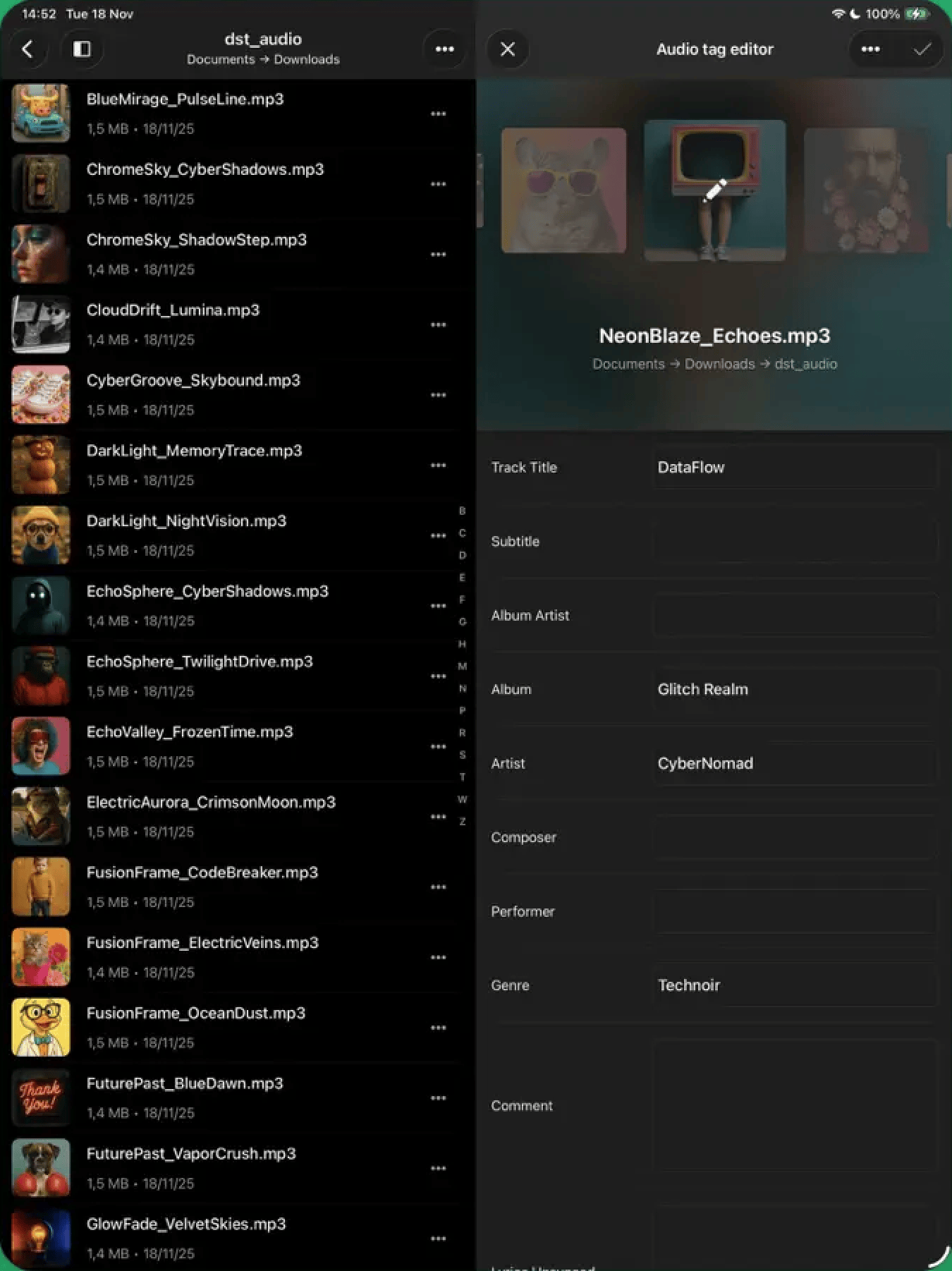
Evertag is the right tool when the problem is scale. If you have a folder of tracks with mostly missing or incorrect metadata and you want to fix them efficiently rather than file by file, the Auto Tag Finder is the feature that justifies the price. It looks up missing information, fills it in, and handles what would otherwise be a tedious manual process.
On a tablet, the ability to review the results of an auto-tag pass across multiple files before confirming is genuinely useful. The display has room to show the before-and-after state clearly, making it easier to catch cases where the automatic lookup pulled incorrect information and needs a manual correction.
Users with large collections of poorly tagged or untagged files who want automatic metadata discovery and the broadest format support on iPad.
MP3 Tag: Music Tag Editor (best free entry point)
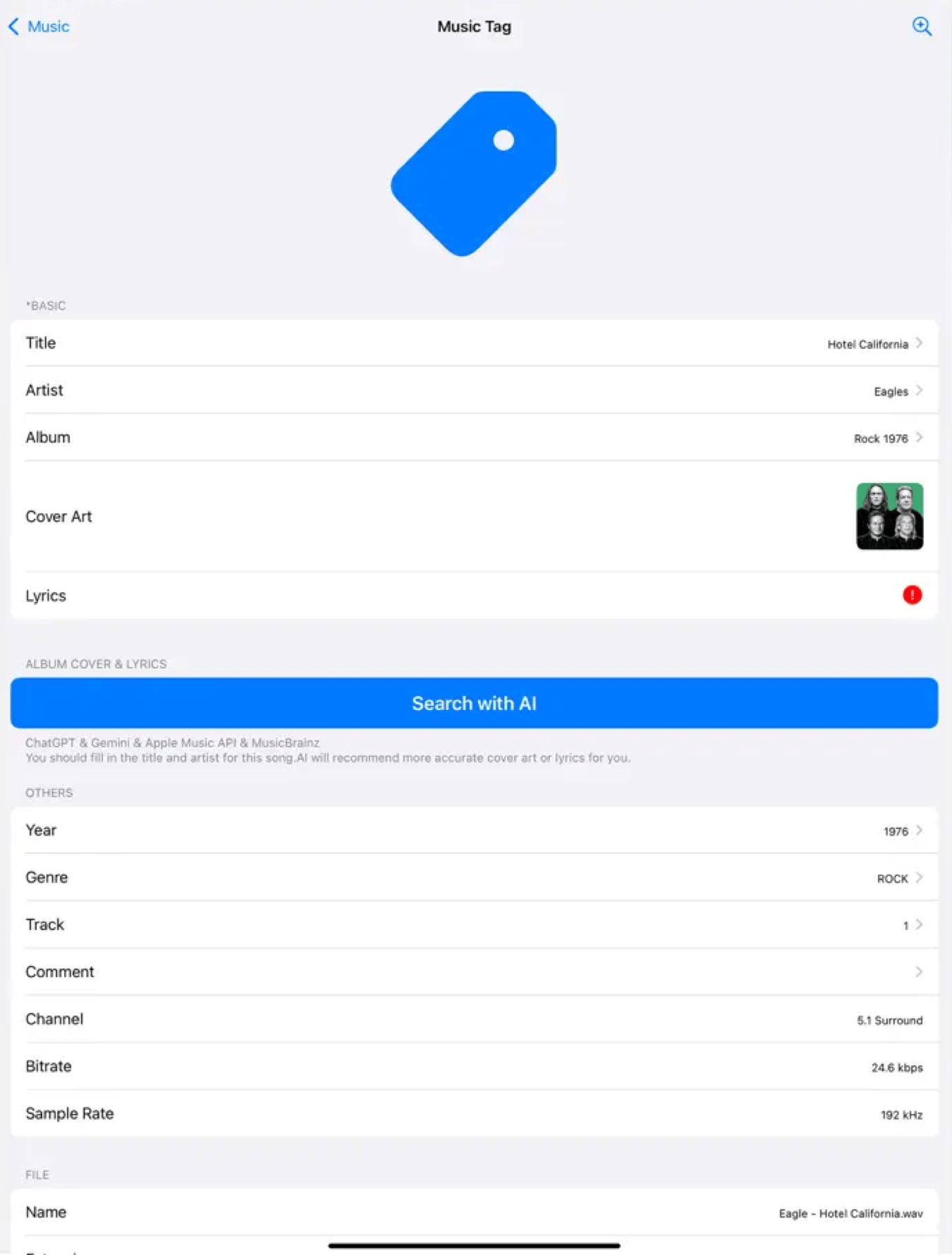
MP3 Tag: Music Tag Editor earns its place as a starting point. It is free, it handles the basics of tag editing with a solid format list, and its AI cover art finder is one of the fastest ways to locate missing album artwork without searching manually. For someone trying tag editing on iPad for the first time, downloading and testing this before committing to a paid option is a reasonable approach.
The feature limit in the free tier becomes visible during batch editing sessions, which is precisely the scenario a typical iPad session favors. For sustained library work with many files, the paid options serve the scope better. For occasional single-file edits or testing whether this kind of workflow suits you, MP3 Tag covers the starting point.
Users who want to try audio tag editing on iPad without an upfront cost, or who self-host a music server and need WebDAV access.
Tunetag (best for structured batch operations)
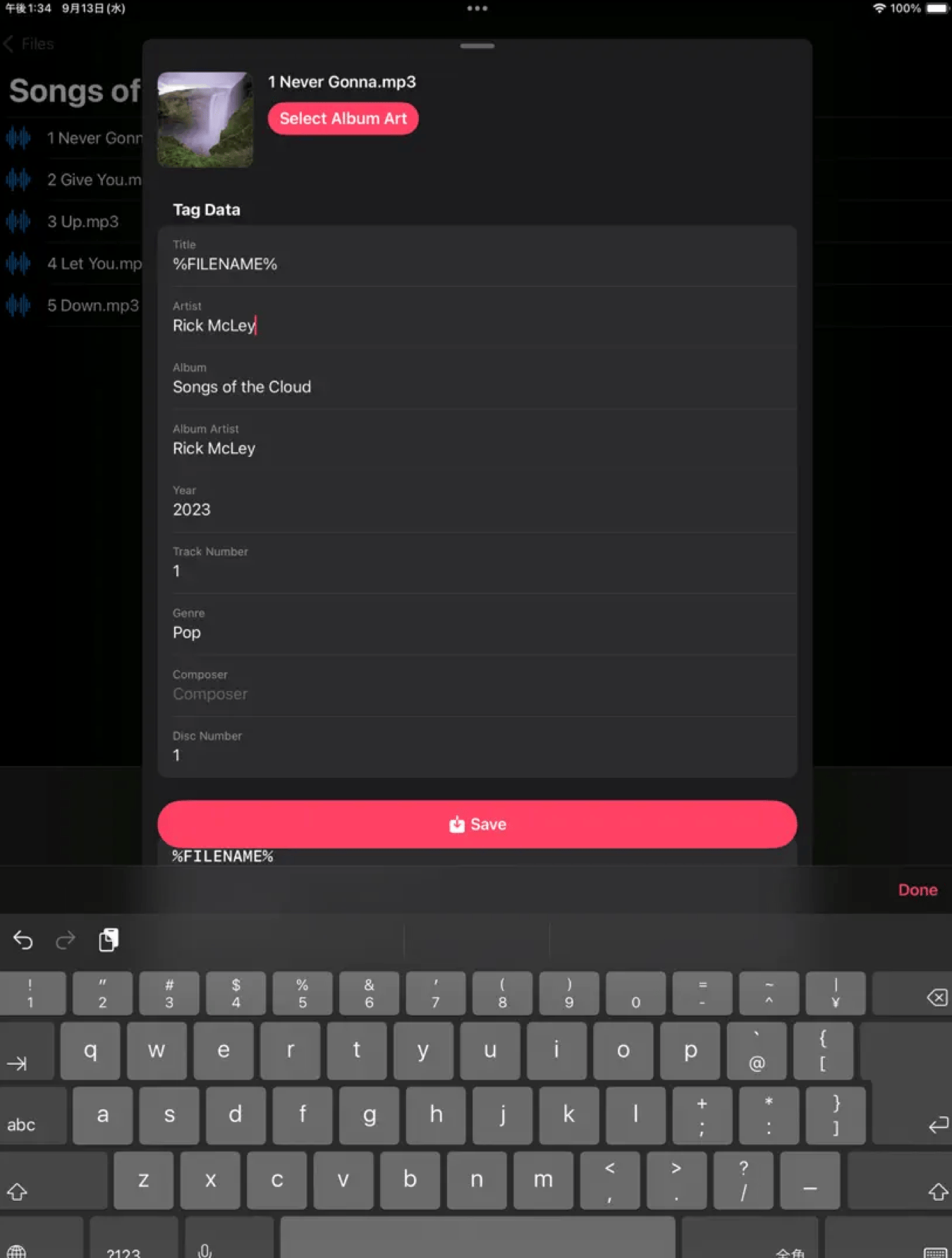
Tunetag is the tool for someone who wants fine-grained control over exactly how tags are applied across a batch. The token-based system lets you build patterns using fields like artist, album, track number, and year, and apply them consistently across a folder of files. On a larger iPad screen, building and verifying those patterns is easier than on a phone.
This is a power user workflow. It takes more setup than the other apps in this list, but for a DJ who imports music in organized batches with predictable naming conventions, the token system can automate what would otherwise be repetitive manual tagging. The native Files app integration means files open and save directly through the Files interface with no share sheet workarounds.
Format support is primarily MP3-focused. For FLAC-heavy or mixed-format libraries, Evertag or Audio Tag Editor are better choices.
Power users who tag music in structured batches and want token-based pattern editing for repeatable, consistent results across many MP3 files.
What about free options?
For reading the existing tags of a file without editing them, Rebels offers a free online audio tag viewer that displays metadata locally in your browser, so nothing is uploaded. MP3 Tag's free tier also covers basic edits for those who want to start without spending. For a full batch editing session on a real collection, one of the paid options will better serve the scope of the work.
What I actually use
When I have a proper library session planned on the iPad, meaning I have set aside time to go through a folder of new tracks and clean up the metadata, I use Audio Tag Editor. The import from iCloud Drive is fast, the batch editing covers the fields I actually use, and the result is written directly to the files.
Otherwise I would also recommend Evertag and its Auto Tag Finder. The auto-tagging feature is a great alternative, but pricier!